


PBS KIDS Video
4.412.44K Reviews
App Specs
- Version
- Varies with Device
- Updated On
- License
- Free
- Downloads
- 10,000,000+
- Developer
- PBS KIDS
- Categories
- Education
- Platform
- Android, iOS
Screenshots
 Analysis by AppCompare
I would start with PBS KIDS Video expecting a straightforward way to put child-focused programs on screen, not a complicated learning platform that needs a long setup. It is a free education app from PBS KIDS, and its mix of episodes, shorts, movies, and television content makes it useful when a child wants something familiar or a caregiver needs a calm, purposeful viewing option. The first meaningful success is simple: find a suitable video, start it together, and let the child take over when they understand the controls.
What to expect from the viewing experience
This is a video app first, so its educational value comes through the programs rather than quizzes or lessons that children complete inside the app. That distinction matters. If you want a child to practice a particular skill through guided exercises, a dedicated learning game may suit that goal better. If you want a show that can prompt a conversation about feelings, nature, numbers, or everyday situations, PBS KIDS Video is a more natural fit.
The catalog draws on recognizable PBS KIDS programming, with episodes and shorter pieces as well as longer viewing options. That variety can help match the moment: a short video may work before dinner, while a longer program can suit a relaxed family viewing session. The app is aimed at Everyone, but I would still choose what to play with the child’s age, interests, and attention span in mind. A broad age label is not a substitute for a parent deciding what feels right at home.
It is also worth setting expectations around how children use video. A program can introduce an idea, but watching alone does not guarantee that a child will absorb or remember it. I get more from the educational angle when I ask a quick question afterward, such as what a character tried or what the child noticed. That small exchange turns passive viewing into a shared activity without making screen time feel like homework.
Getting started without making it a project
The app is available for Android and iOS, and its current version is 7.1.10. I would install it before handing over the device, open it once myself, and explore the available choices while there is no rush. That gives me a chance to see how browsing works and decide what I am comfortable putting in front of a child. It is a useful two-minute check, especially if the phone or tablet is shared with other family members.
For a first session, I would avoid presenting the entire catalog as a buffet. Pick one program or topic that already interests the child, then show how to return to the viewing choices. Children often do better with a clear starting point than with a screen full of possibilities. If they are old enough to browse, let them choose between a couple of options rather than asking an open-ended “What do you want?” That keeps the decision manageable and gives them some ownership.
Parents often wonder whether they need to make an account or configure a complicated profile before a child can watch. My practical advice is to begin by opening the app and checking the current on-screen prompts; don’t assume a setup step is needed until the app asks for it. I would also test the intended viewing arrangement in advance if the plan is to use a television. The app supports Chromecast and AirPlay, but checking that the receiving device is available and ready can prevent a child’s first family movie moment from turning into troubleshooting.
Worth Reading Before You Choose

EA SPORTS FC Mobile 26 Is a Bigger Football Game, but It Takes Time

Flipboard Shows What News Apps Must Do Beyond the Feed

Switching to Android Auto Means Rethinking Your Driving Routine

Google Calendar Makes a Crowded Week Easier to Manage

Ludo King Makes the Most of the Minutes Between Plans

Baby Panda World Brings Quick Play to Modern Phones, but Its Game Library Feels Busy
A first successful session, at home or on the go
A realistic first use might be a rainy afternoon when a child is restless and you need a short breather before starting dinner. I would choose a short video together, explain that we are watching one selection, and stay nearby for the first few minutes. Once the child sees how to play and pause it, the app has done its immediate job. Afterward, I might ask which part was funny or surprising. That makes the viewing feel intentional without requiring a lesson plan.
For a longer stretch of viewing, I would decide the stopping point before handing over the device. A simple plan—one episode, then a snack or another activity—is easier to follow than negotiating after the child is absorbed. The app can provide the content, but it does not replace a household routine. This is one reason I see it as a helpful tool for caregivers, not a substitute for supervising a young child’s screen use.
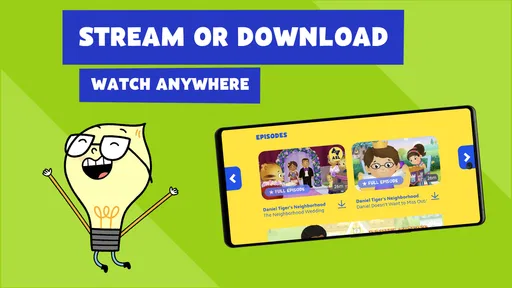
If you are considering offline use, the app’s store summary describes streaming or downloading and watching. I would look for the download option within the app before relying on it for a trip, and test a selection while connected to the internet. That is a more reassuring approach than discovering at the last minute that the video you expected is not ready to play. For a car ride or a place with unreliable connectivity, planning ahead is the practical difference between a useful option and a frustrating one.
What makes it useful—and where it has limits
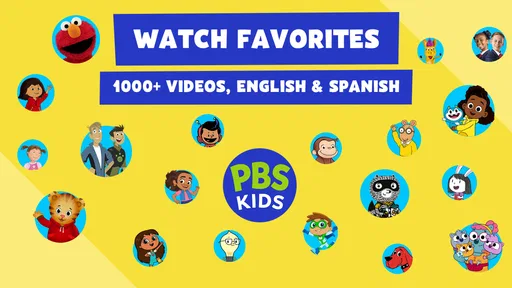
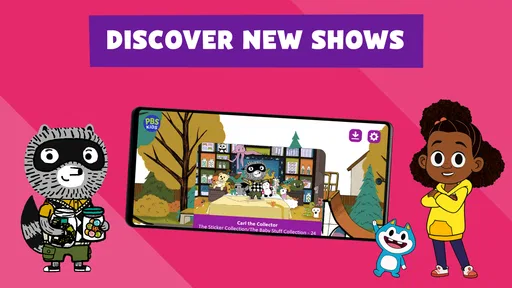
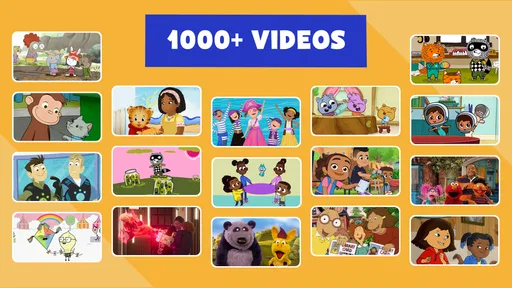
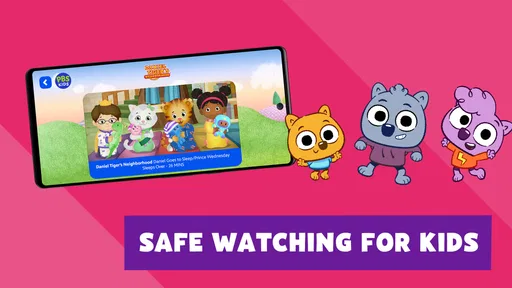
The first thing that struck me about the PBS KIDS Video app is its vibrant and colorful interface. It's super easy for kids to navigate, which means less frustration for them and more peace of mind for you! The app is packed with a ton of episodes from all-time favorite shows like "Arthur," "Daniel Tiger's Neighborhood," and "Curious George." Trust me, your kids won't run out of things to watch.
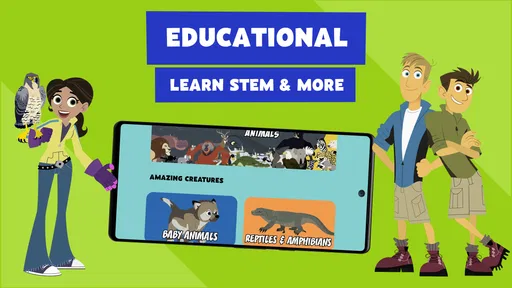
What I love about the content is that it's all educational. Whether it's teaching numbers, letters, social skills, or science concepts, the shows are designed to make learning fun. Plus, the app offers Spanish language videos, which is a fantastic way to introduce a second language to your kiddos.
Easy Navigation for Little Fingers
One of the standout features is how intuitive the app is. Kids can swipe through or search for their favorite shows without hitting any snags. There's also a handy parental control section where you can limit screen time and ensure your child is only accessing age-appropriate content. It's like having a virtual babysitter that you can trust.
The app is available on both Android and iOS, and the setup is a breeze. You can even stream videos on your TV through Chromecast or AirPlay, which is perfect for family viewing time. Just imagine the kids gathered around, learning and laughing together—it's a win-win!
Making the content work for your family
One useful way to approach the library is to choose by situation rather than browsing until something catches a child’s eye. For a transition between activities, a short piece is easier to fit into a routine than beginning a longer program. For shared viewing, choose something the adults can enjoy discussing too. This helps avoid the familiar trap of scrolling through choices for longer than the actual viewing time.
The Spanish-language videos offer another practical possibility: watching together can become a gentle introduction to hearing another language, even if neither the child nor the adult is ready for formal language study. I would treat it as exposure and conversation, not assume that a video alone will teach fluency. Repeating a word heard in a program or noticing familiar phrases can make the experience more engaging, while keeping expectations realistic.
For caregivers, a less obvious trade-off is that a child-friendly interface can make independent browsing easier, but it does not mean every child is ready to navigate alone. A preschooler may need help choosing and stopping, while an older child may be comfortable finding a favorite program. I would use the app’s controls as one part of a screen-time routine and keep the device’s broader use in mind as well. No single app setting can make every viewing situation hands-free.
How it compares with other ways to watch
Compared with a general video service, PBS KIDS Video has a clearer child-and-learning focus, which can make choosing feel less like searching an enormous mixed library. A broad streaming service may be the better choice when a family wants a particular film or a wider range of entertainment. Here, the appeal is having children’s programming gathered in one place and being able to make the viewing choice around a young viewer.
Compared with educational games, the app asks less of a child’s hands and attention: they can watch rather than follow game rules or complete tasks. That is useful when a child is tired, when you want to watch together, or when a screen-based activity needs to be calm. The trade-off is that video is less interactive. If the goal is practicing letter formation, counting by responding to prompts, or working through a structured activity, a suitable educational game or hands-on play will be more direct.
At an average rating of 4.2 from around 65,000 ratings, the app has attracted a substantial audience, with over 10 million installs. I see those figures as a sign that it is a familiar option for many families, not proof that it will suit every household or child. It is free, which lowers the barrier to trying it, but what matters most is whether its programming and browsing style fit your child and your family’s approach to screen time.
Where confusion can creep in
One common misunderstanding is expecting every video to behave like a lesson with a clear beginning, activity, and result. This is a viewing library, so the child’s experience depends on the program selected. If you need a specific topic, search or browse with that aim in mind, then preview the choice if you want to be sure it fits the moment. A program that is educational in a broad sense may not be the right match for a particular skill or mood.
Another point to keep in mind is that “free” does not mean every family will have the same viewing experience in every situation. The app costs nothing to download, but streaming still depends on access to a connection, and watching on a television involves compatible casting equipment. If connectivity or casting is central to your plan, try it before the day you need it. The app’s download option can be useful for preparation, but it is better to confirm a video is ready than to assume offline playback will work automatically.
The parental controls are a welcome aid, but I would not rely on them as a replacement for checking the app with the child. Controls help shape use; they do not know whether a particular episode is a good fit for your family’s preferences or what else the child may do on a shared device. I would also explain the stopping routine out loud. Children tend to handle the end of screen time better when the expectation is clear before playback starts.
The app’s 12,000 reviews reflect a wide range of experiences, but individual needs still differ. A child who dislikes video, gets frustrated by browsing, or needs interactive instruction may be happier with a book, a hands-on activity, or a focused learning app. Likewise, families looking for a general entertainment catalog rather than programming aimed at children may prefer a broader streaming service. I would skip this app if its educational and child-centered focus is not what you need; its strongest qualities are tied to that purpose.
Who is most likely to enjoy it
I would recommend trying it if you care for a young viewer who likes PBS KIDS programs, want an easy option for occasional family viewing, or need a way to make a short screen break feel more considered. It can also suit a caregiver who wants to offer a child a choice between familiar shows without sending them to a general-purpose video platform. The app is rated for Everyone, and the developer is PBS KIDS, but a parent’s own judgment still matters when choosing content and setting limits.
It may be less suitable if you want a tightly structured curriculum, measurable progress through lessons, or a highly interactive experience. It is also not the best fit when you need guaranteed distraction-free use without any adult involvement. The interface may be approachable, but helping a child choose, preparing downloads, and managing when viewing ends are still part of making the app work well.
Why You Should Give It a Go
Now, you might be wondering, "What's the catch?" Honestly, after diving into this app, I couldn't find a major downside. It's free to download, though there are optional in-app purchases if you want to expand the library further. But even without spending a dime, there's plenty to keep your kids entertained.
Overall, the PBS KIDS Video app is a brilliant resource for parents who want to blend screen time with educational value. It's like sneaking veggies into a meal—they're having fun, and you're happy knowing they're learning. If you haven't tried it yet, I'd say it's worth checking out. Who knows? It might just become a staple in your household.
My practical recommendation
I would begin with one short, familiar program and watch the first selection together. That lets you see whether the child can navigate comfortably, whether the content suits the moment, and how the app fits into your routine. If it works, save the effort for another day by deciding in advance what kind of video suits common situations: a brief transition, a shared family watch, or a prepared option for travel.
PBS KIDS Video was released on June 24, 2014, and its current version is 7.1.10. Those details place it as an established app rather than a brand-new experiment, though the best test is still your own first session. I would keep the expectations modest: it offers a convenient route to child-oriented educational viewing, not a replacement for play, reading, or a caregiver’s attention.
My overall recommendation is to give it a try if you want a free, child-focused video option and are comfortable setting the boundaries around viewing yourself. Its biggest strength is the combination of recognizable programming and a kid-friendly way to reach it; its main limitation is that watching remains watching, rather than active instruction. Start with one video, see how your child responds, and decide from there whether it earns a place in your family’s routine.
Pros
- Wide range of educational content
- User-friendly interface for kids
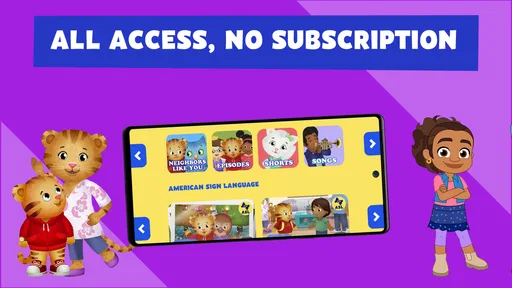
- No subscription required
- Regular updates with new shows
- Safe and ad-free environment
Cons
- Limited offline viewing options
- Requires internet for streaming
- Content mainly for younger children
- No parental control features
- Region restrictions for some videos
FAQs for PBS KIDS Video
What is PBS KIDS Video and how can it benefit my child?
PBS KIDS Video is a free app that offers a wide array of educational shows and videos aimed at children. It provides safe, age-appropriate content designed to entertain and educate children, fostering learning in areas like science, math, and literacy. The app helps children develop essential skills while keeping them engaged with their favorite PBS characters.
Is the PBS KIDS Video app safe for children to use independently?
Yes, the PBS KIDS Video app is designed with child safety in mind. It provides a secure environment where children can explore videos without encountering inappropriate content. The app's interface is intuitive and child-friendly, ensuring that kids can navigate it independently while parents can feel confident that they are in a safe digital space.
Does the PBS KIDS Video app require a subscription or in-app purchases?
The PBS KIDS Video app is completely free to download and use, with no hidden subscription fees or in-app purchases. It offers access to a vast library of PBS KIDS shows without any cost, making it an accessible option for parents seeking quality educational content for their children without financial commitment.
Can the PBS KIDS Video app be used offline?
While the PBS KIDS Video app primarily functions with an internet connection, it also offers a limited selection of downloadable videos for offline viewing. This feature is particularly useful for parents who want to provide their children with entertainment during travel or in areas with limited internet access.
What devices are compatible with the PBS KIDS Video app?
The PBS KIDS Video app is compatible with a variety of devices, including those running on Android and iOS operating systems. This broad compatibility ensures that most smartphones and tablets can support the app, allowing children to access educational content regardless of the device they use.


